iOS developers need to generate a provisioning profile to code sign their apps for testing. The good news is that, as of iOS9, you can develop and test your apps on your iOS device without a paid Apple Developer account. This is particularly great for developers who want to try out mobile development with Ionic, since it saves the cost but still provides a lot of the features of having a full Apple Developer account. For a full breakdown of the features included, check outApple’s docs.
Requirements
- Xcode 7 or higher
- iOS 9
- A free Apple ID or paid Apple Developer account
Creating a Provisioning Profile
To start, you’ll need to set up a provisioning profile to code sign your apps.
Using an Apple ID
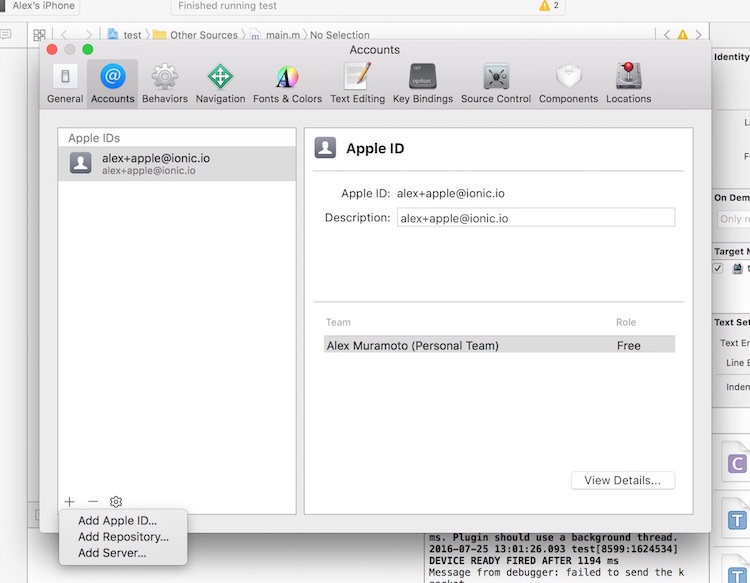
- Open Xcode preferences (Xcode > Preferences…)
- Click the ‘Accounts’ tab
- Login with your Apple ID (+ > Add Apple ID…)
Once you’ve successfully logged in, a new ‘Personal Team’ with the role ‘Free’ will appear beneath your Apple ID.
Using an Apple Developer Account
Creating a provisioning profile with a paid Apple Developer account is a little bit more involved. For full instructions, check outLaunching Your App on Devicesin the Apple Developer docs.
Running Your App
- Run a production build of your app with
ionic cordova build ios --prod - Open the
.xcodeprojfile inplatforms/ios/in Xcode - Connect your phone via USB and select it as the run target
- Click the play button in Xcode to try to run your app
Oops, code signing error! No problem.
Code Signing Your App
Next, you’ll need to code sign your app. How you do this will depend on if you are running Xcode 8 or an earlier version.
Xcode 7 and Earlier
If you are running Xcode 7 or earlier, you’ll get a code signing error that looks like this when you try to run the app:
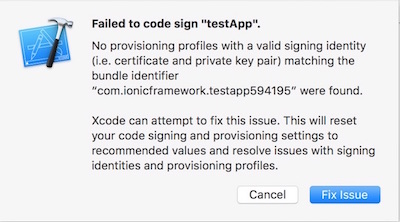
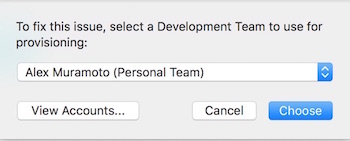
Click the ‘Fix Issue’ button, then select your ‘Personal Team’ profile.
Xcode 8
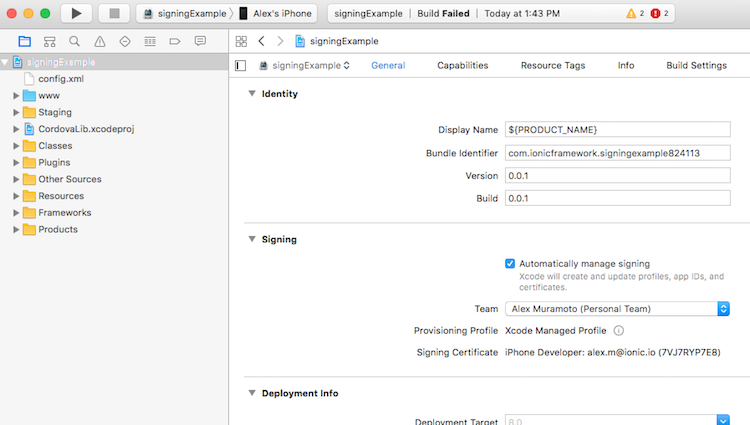
If you are running Xcode 8, the code signing error will appear as a buildtime error, rather than as a pop-up:
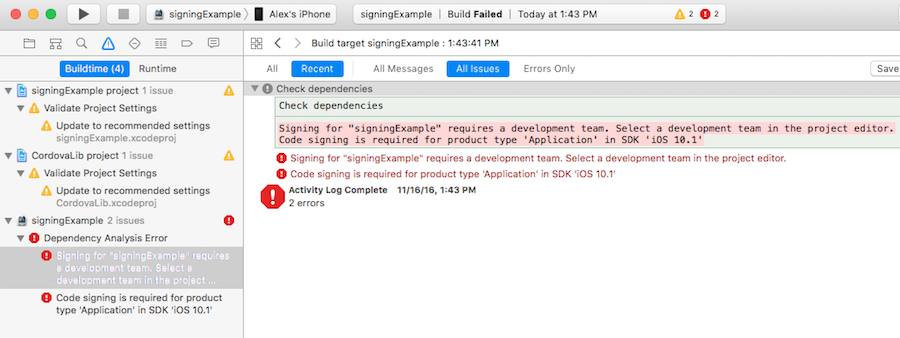
To select the certificate to sign your app with, do the following:
- Go to the ‘Project Editor’ by clicking the name or your project in the ‘Project Navigator’
- Select the ‘General’ section
- Select the team associate with your signing certificate from the ‘Team’ dropdown in the ‘Signing’ section
Trusting the Certificate
Once you’ve code signed your app, you should get a launch error that looks like this. On Xcode 7 and below you’ll see this automatically. On Xcode 8 it will appear the next time you try to run the app:
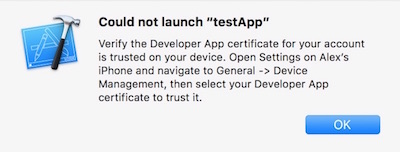
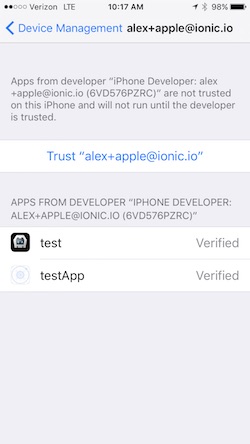
To get past this, we have to tell our iOS device to trust the certificate we code signed our app with:
- Open the ‘Settings’ app on your iOS device
- Go to ‘General > Device Management’. You’ll see the email address associated with the Apple ID or Apple Developer account you used to code sign your app.
- Tap the email address
- Tap ‘Trust <your_email>’:
Now, go back to Xcode and hit that play button or runionic cordova run ios --devicefrom the command line to install and launch your app on your iOS device.